A · Download a spreadsheet and import it exactly like this
These are small, real files you can open in Excel and import into Wassender. The phone numbers are demo data. Replace them with your own test contacts before sending. The blank Name cell in the order example is intentional: it lets you test a fallback.
- Download orders.xlsx below. Keep the first row as the column headers. Put one customer in each following row.
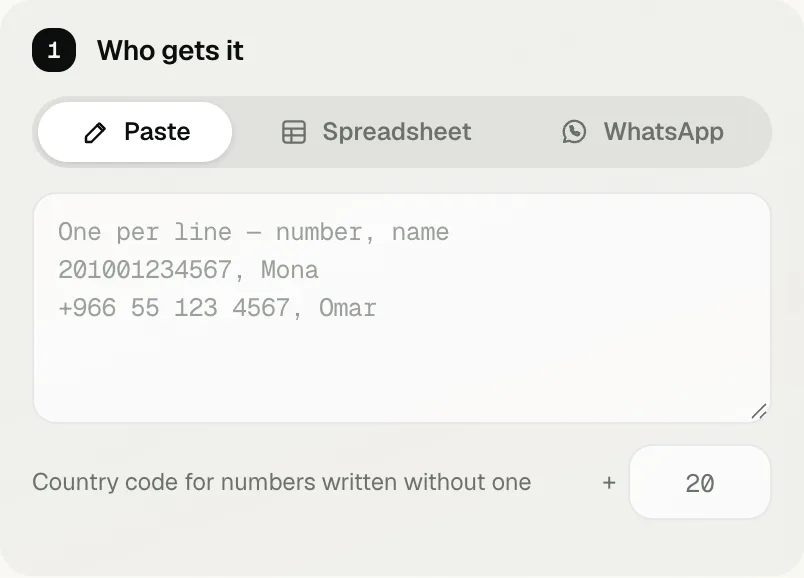
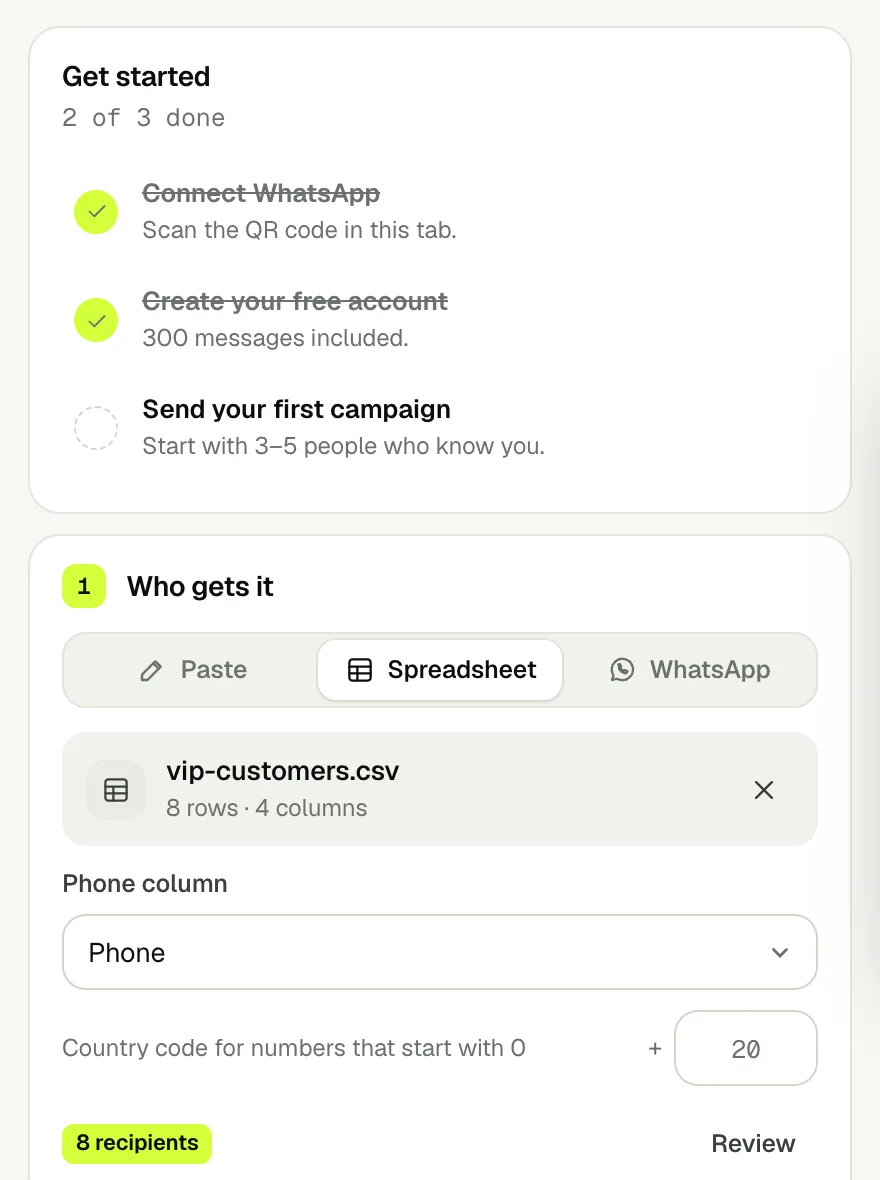
- Open New campaign → Spreadsheet → choose the downloaded file. In the phone column selector choose Phone.
- The example numbers already include their country code (1). For your own local numbers, choose your country code; keep phone cells as text so Excel does not remove the leading zero.
- Check the recipient count. Three rows should give three recipients unless a number is excluded by your opt-out list or validation.
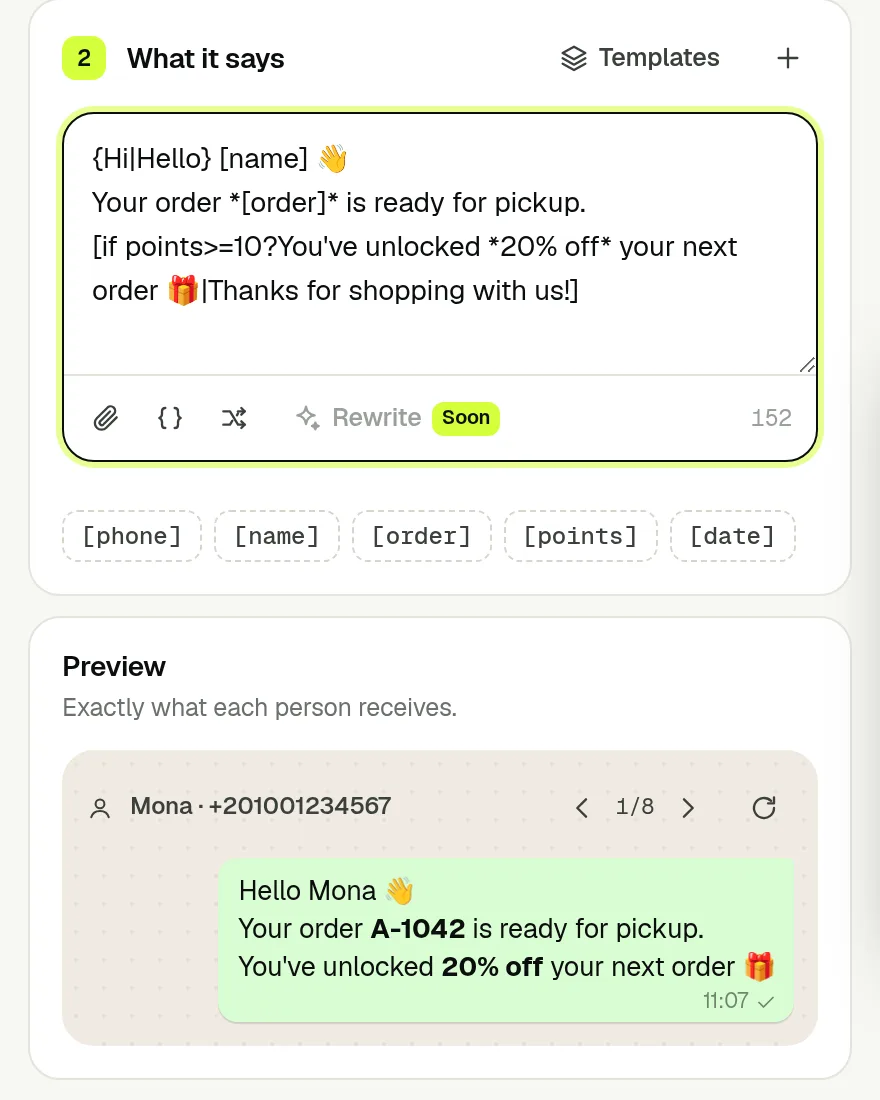
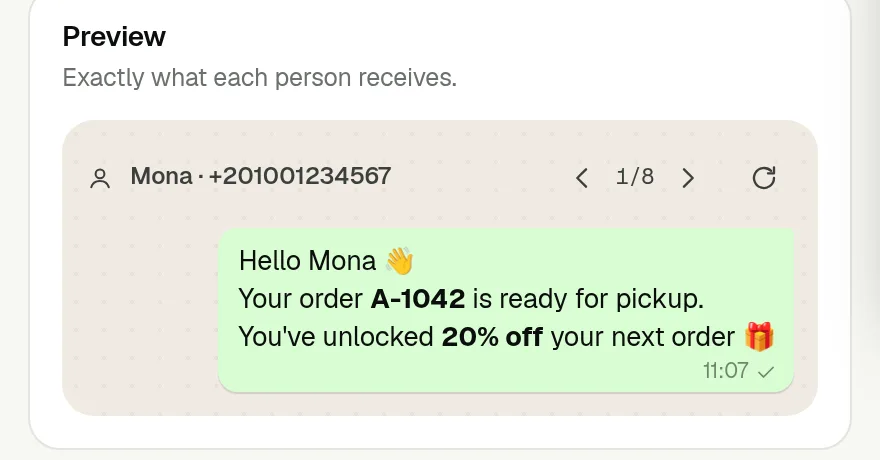
- Paste the matching message below into What it says. Preview every recipient before the final confirmation.
If your count is wrong: check the selected phone column first; then check blank phone cells, duplicates and opt-outs. Names belong in Name, not in the phone column. You can import .xlsx, .xls or .csv.
B · Order updates: a name, an order and a missing name
| Phone | Name | Order | Points |
|---|
| 12025550101 | Mona | A-1042 | 12 |
| 12025550102 | Omar | A-1043 | 4 |
| 12025550103 | — | A-1044 | 10 |
Paste this message into the campaign:
Hi [name|friend], your order *[order]* is ready. Reply here to arrange pickup.
Mona → Hi Mona, your order A-1042 is ready. Omar → Hi Omar, your order A-1043 is ready. The blank Name row → Hi friend, your order A-1044 is ready. All three messages also include the pickup sentence.
The asterisks make the order number bold in WhatsApp. Name supplies [name]; Order supplies [order].
Preview: the exact message for every row
| Customer row | Customer receives |
|---|
| 1 · Mona | Hi Mona, your order A-1042 is ready. Reply here to arrange pickup. |
| 2 · Omar | Hi Omar, your order A-1043 is ready. Reply here to arrange pickup. |
| 3 · — | Hi friend, your order A-1044 is ready. Reply here to arrange pickup. |
C · Appointments: use the customer’s date, not today’s date
| Phone | Name | Appointment Date | Appointment Time |
|---|
| 12025550101 | Mona | 15 October 2026 | 10:00 AM |
| 12025550102 | Omar | 16 October 2026 | 2:30 PM |
Paste this message into the campaign:
Hi [name], your appointment is on *[appointment_date]* at *[appointment_time]*. Reply 1 to confirm or 2 to reschedule.
Mona receives: Hi Mona, your appointment is on 15 October 2026 at 10:00 AM. Reply 1 to confirm or 2 to reschedule. Omar receives his own date, 16 October 2026, and 2:30 PM.
Appointment Date becomes [appointment_date]; Appointment Time becomes [appointment_time]. These sample dates are spreadsheet text. Replies 1 and 2 are instructions to customers; set up separate Autopilot rules or answer them yourself to handle those replies.
Preview: the exact message for every row
| Customer row | Customer receives |
|---|
| 1 · Mona | Hi Mona, your appointment is on 15 October 2026 at 10:00 AM. Reply 1 to confirm or 2 to reschedule. |
| 2 · Omar | Hi Omar, your appointment is on 16 October 2026 at 2:30 PM. Reply 1 to confirm or 2 to reschedule. |
D · Loyalty offers: test both sides of the condition
| Phone | Name | Points | Code |
|---|
| 12025550101 | Mona | 12 | MONA20 |
| 12025550102 | Omar | 4 | OMAR10 |
| 12025550103 | Sara | 10 | SARA20 |
Paste this message into the campaign:
Hi [name], [if points>=10?you get 20% off|you get 10% off]. Use code *[code]* at checkout.
Mona (12 points) → Hi Mona, you get 20% off. Use code MONA20 at checkout. Omar (4 points) → Hi Omar, you get 10% off. Use code OMAR10 at checkout. Sara (exactly 10 points) also gets 20% off, with SARA20.
>= means “at least”, so 10 passes the condition. This message displays the codes you provide; create or validate those discount codes in your shop before sending.
Preview: the exact message for every row
| Customer row | Customer receives |
|---|
| 1 · Mona | Hi Mona, you get 20% off. Use code MONA20 at checkout. |
| 2 · Omar | Hi Omar, you get 10% off. Use code OMAR10 at checkout. |
| 3 · Sara | Hi Sara, you get 20% off. Use code SARA20 at checkout. |
E · Arabic columns and an Arabic customer message
| Phone | الاسم | الطلب | النقاط |
|---|
| 12025550101 | منى | A-1042 | 12 |
| 12025550102 | عمر | A-1043 | 4 |
| 12025550103 | — | A-1044 | 10 |
Paste this message into the campaign:
أهلاً [الاسم|عميلنا العزيز]، طلبك *[الطلب]* جاهز.
[if النقاط>=10?لك خصم 20% على طلبك القادم|لك خصم 10% على طلبك القادم]
منى receives her name, order A-1042 and 20% off. عمر receives order A-1043 and 10% off. The blank-name customer receives عميلنا العزيز, order A-1044 and 20% off.
Choose Phone for the phone column. The message variables use the exact Arabic headers: الاسم, الطلب and النقاط.
Preview: the exact message for every row
| Customer row | Customer receives |
|---|
| 1 · منى | أهلاً منى، طلبك A-1042 جاهز.
لك خصم 20% على طلبك القادم |
| 2 · عمر | أهلاً عمر، طلبك A-1043 جاهز.
لك خصم 10% على طلبك القادم |
| 3 · — | أهلاً عميلنا العزيز، طلبك A-1044 جاهز.
لك خصم 20% على طلبك القادم |
 wassender