← All guidesPACE · REVIEW · LIVE CONTROL

Send on a pace you can stand behind.

Wassender gives you a final review before each run and clear controls while it sends. You choose the pace and can pause when you need to.

On this pageChoose a section
01 · REVIEW FIRST

Know what will happen before it starts.

Before a campaign starts, Wassender shows the recipient count, estimated duration and selected pace beside a sample of the personalized message. Take this pause to verify the audience and content.

  • Check the recipient total against the list you intended to use.
  • Read the rendered sample and look for missing spreadsheet values.
  • Use Back to adjust the campaign, or Start sending when the summary is correct.
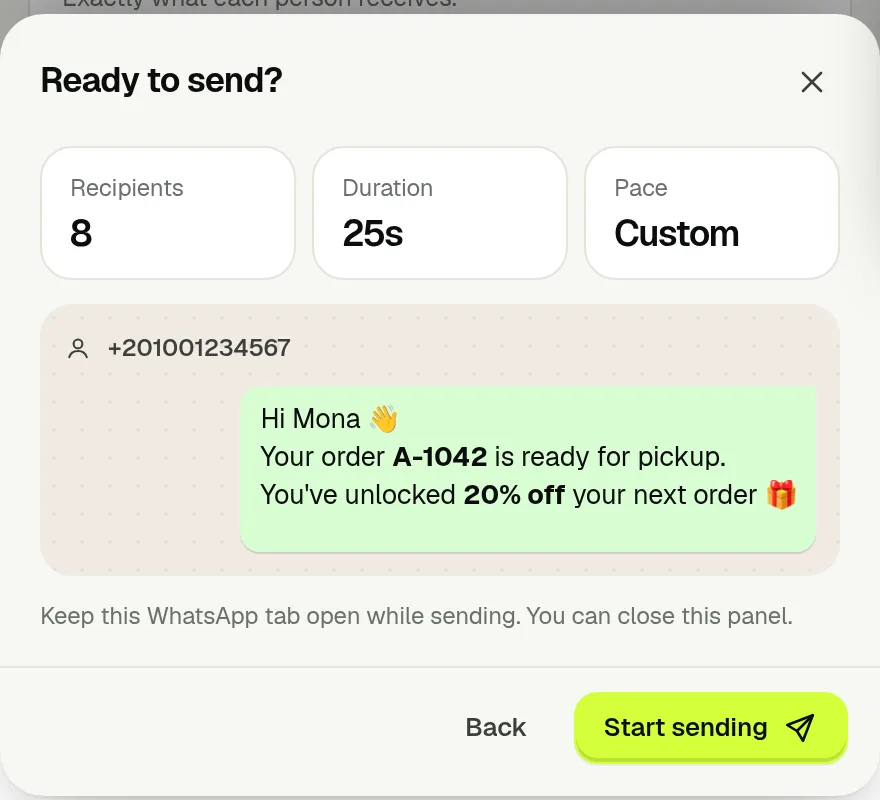
Real Wassender confirmation sheet showing recipients, duration, pace and rendered message
The final confirmation before a live campaign
02 · CHOOSE A RESPONSIBLE PACE

Set limits that fit your audience.

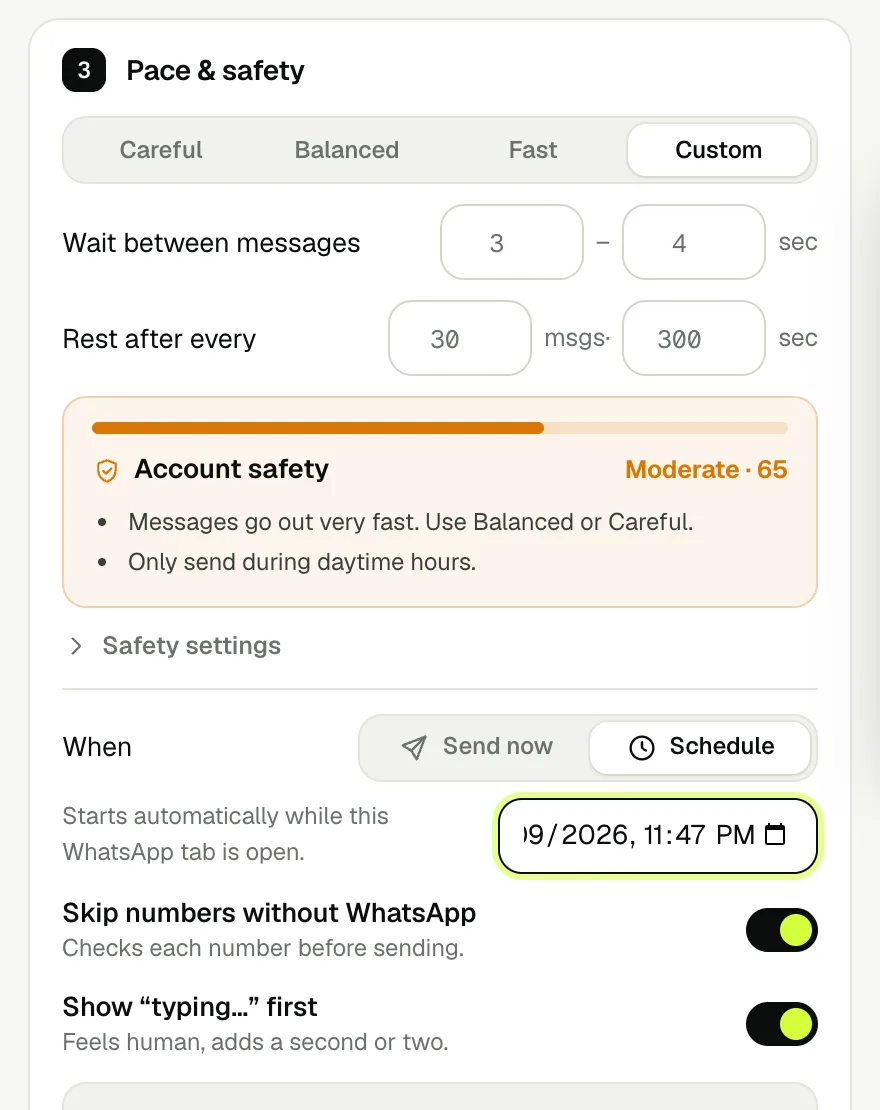
Pick Careful, Balanced, Fast or Custom, then review the account-safety guidance shown with your settings. Your choices affect message delays and rest breaks.

  • Use a slower pace for people who are less familiar with your business.
  • Open Safety settings to set a daily limit and optional sending hours.
  • Messages continue on another day when a daily limit is reached; WhatsApp Web must remain open for a scheduled run.
Real Wassender pace and safety controls, account-safety guidance and campaign schedule selector
Review pacing, account guidance and timing controls
03 · STAY IN CONTROL

Follow the live log as messages go out.

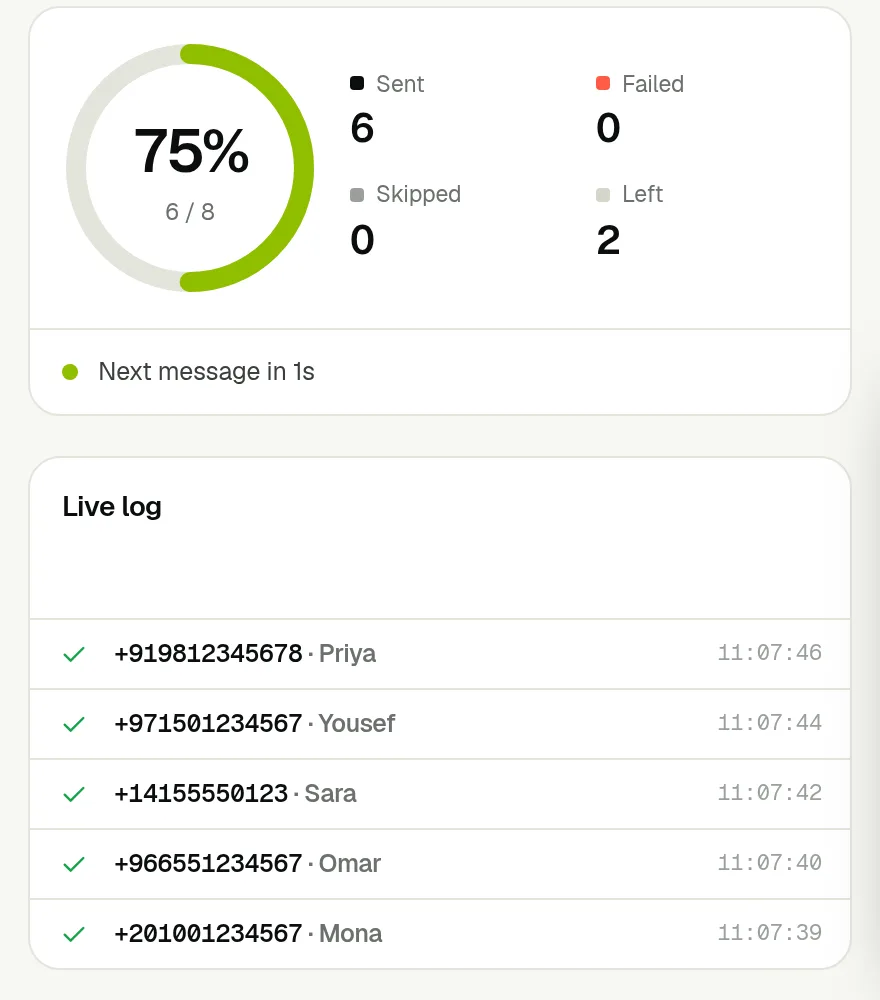
The progress view updates as the campaign runs, with a recipient-level log that makes outcomes easy to check.

  • See sent, failed, skipped and remaining totals.
  • Pause or stop from the controls at the bottom of the extension.
  • Review a completed campaign in Reports for its history and recipient details.
Real Wassender live campaign progress, recipient log and pause and stop controls
Progress and recipient outcomes update in the live view
04 · WATCH YOUR ACCOUNT HEALTH

A score that warns you before WhatsApp does.

Account health (in the dock menu) scores the last 7 days from campaigns sent in this browser: messages sent, reply rate, failures, and how many went to people who never replied. Healthy, Watch it or At risk tells you whether to slow down.

  • A low reply rate is the strongest warning sign — message people who know you.
  • Nothing leaves your computer to calculate it.

Delays, breaks and limits in everyday words

  1. A 15–35 second delay means Wassender chooses a wait in that range between recipients. A rest break is a longer pause after a batch of messages. Neither setting guarantees that WhatsApp will not restrict an account.
  2. With 150 recipients and a daily limit of 100, the campaign needs more than one day. Sending hours define when it may run; the daily limit defines how many messages it may attempt.
  3. Pause holds the remaining recipients so you can continue. Stop ends the run. Messages already sent remain sent. Check the live log before deciding to resend.
  4. An opt-out is a customer who asked not to receive campaigns. Review opt-outs in Audience and message people who expect to hear from you.

A concrete run: 3 customers, then a larger list

Import orders.xlsx and use its order-ready message. Replace the three demo phone numbers with your own test contacts. Choose Careful, inspect all three previews, then check that the confirmation says 3 people. Start only after checking the names and orders.

For a 150-person list, a daily limit of 100 allows at most 100 attempts today and leaves the remainder for a later day. If sending hours are 09:00–18:00 and you start at 19:00, the confirmation offers to wait for the next allowed time. Read that time before confirming.

Example log: Mona = sent; Omar = failed; third customer = skipped. Sent succeeded. Failed means the attempt did not succeed; read its Note before retrying. Skipped means the row was not sent, such as an invalid recipient. Pause while reviewing an unexpected result.

See what happens in each sending situation

Input or settingExpected resultWhat to check
Three rows with unique valid-format numbersThree recipients before other exclusionsCheck the final confirmation count.
Same number appears twiceOne recipient, not twoThe first row’s data is kept.
One row has no phone numberThat row is not sentAdd the correct number to include the customer.
Number is on Opt-outsExcluded from the campaignRespect the customer’s preference.
Sending hours 09:00–18:00; start at 19:00Confirmation offers to wait for the next allowed timeReview the proposed time and daily limit.
Pause after one successful sendRemaining recipients waitResume continues; the sent message stays sent.
Stop the campaignThe current run endsReview Reports before starting another run.
Free quota is used upCampaign pauses when messages run outNew accounts get 1 hour of Unlimited free from their first campaign; then choose a plan.

Spreadsheet preview: duplicates, empty cells and invalid numbers

PhoneNameOrderPoints
12025550101MonaA-104212
+1 (202) 555-0101Duplicate MonaA-99994
—Missing phoneA-10434
123Invalid phoneA-10444
12025550102OmarA-10454
12025550103—A-104610

This file has 6 rows but prepares 3 recipients: Mona, Omar and the blank-name customer. The formatted Mona number is a duplicate; the blank phone is left out; 123 is too short. The first Mona row is kept, so her order stays A-1042, not A-9999.

If Omar’s number is also on your opt-out list, the prepared count drops to 2. Try this in preview; you do not need to send a campaign to inspect the count. A valid-looking phone number does not confirm that it has a WhatsApp account.

If WhatsApp restricts or bans your number

  1. Stop every campaign and sequence, and pause Integrations sending.
  2. Read WhatsApp's message on your phone: a temporary restriction lifts on its own after the time shown.
  3. If the number is banned, request a review from the WhatsApp app and explain that you message your own customers.
  4. When you start again: Careful pace, smaller lists, only people who expect your message, and more personal wording.

Wassender can't guarantee an account won't be restricted — WhatsApp decides. Reports from people who don't know you are the most common cause.

NEXT GUIDE

Let common questions answer themselves.

Set up Autopilot replies, away messages and menus, then test the conversation before turning it on.

Read the Autopilot guide
Chat with us