← All guidesAUTOPILOT · AUTO-REPLIES

Give customers a useful answer, anytime.

Autopilot handles common, repeat questions with rules you define. Test the conversation in a simulator, then keep WhatsApp Web open while it runs.

On this pageChoose a section
01 · ADD A KEYWORD RULE

Give repeat questions a useful answer.

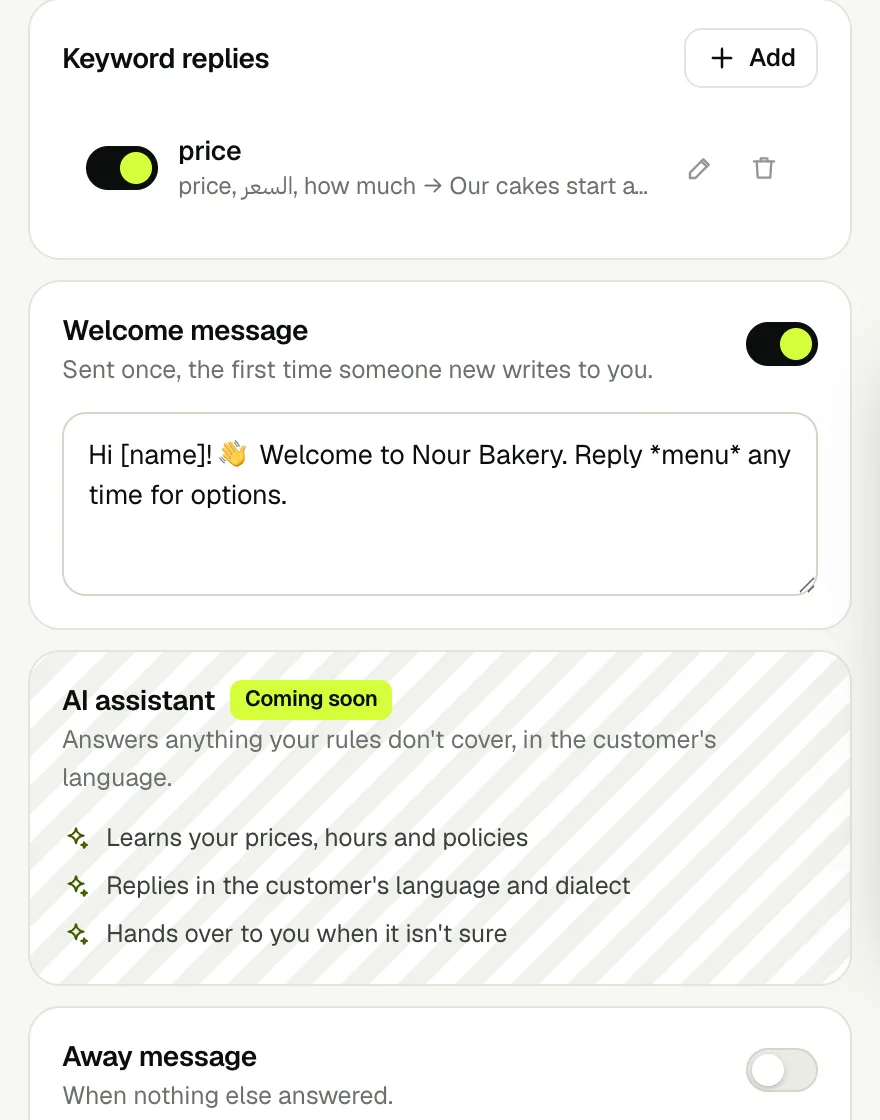
Open Autopilot and add the words customers use for a common question. Write the reply once; Wassender can include the customer name and match common Arabic spelling variants.

  • Separate matching words with commas.
  • Keep each reply specific, accurate and easy to act on.
  • Edit or switch off a rule from the list at any time.
Real Wassender Autopilot screenshot showing an enabled keyword reply and the welcome message controls
The keyword list and welcome-message settings in the extension
02 · SET GREETINGS AND AWAY HOURS

Cover the first hello and the busy moments.

Set a welcome message for a new conversation, then add an away response for the times your team cannot answer. Use clear language about when a person will reply.

  • The welcome message runs once when a new contact writes.
  • The away message covers conversations that no other rule answers.
  • Keep business hours and promises up to date.
Real extension view with a welcome message enabled and away-message configuration below
Configure welcome and away replies in Autopilot
03 · GUIDE PEOPLE WITH A MENU

Turn a short reply into a clear next step.

A numbered menu lets customers ask for prices, opening hours or a person without typing a full question. Connect each option to the right answer.

  • Keep option labels short and distinct.
  • Use one reply number for each action.
  • Include a human handoff option when a request needs personal help.
Real Autopilot simulator showing a numbered menu and the matching answer to option two
A customer selects an option and sees its matching response
04 · TEST, THEN ENABLE

Try the whole conversation before it goes live.

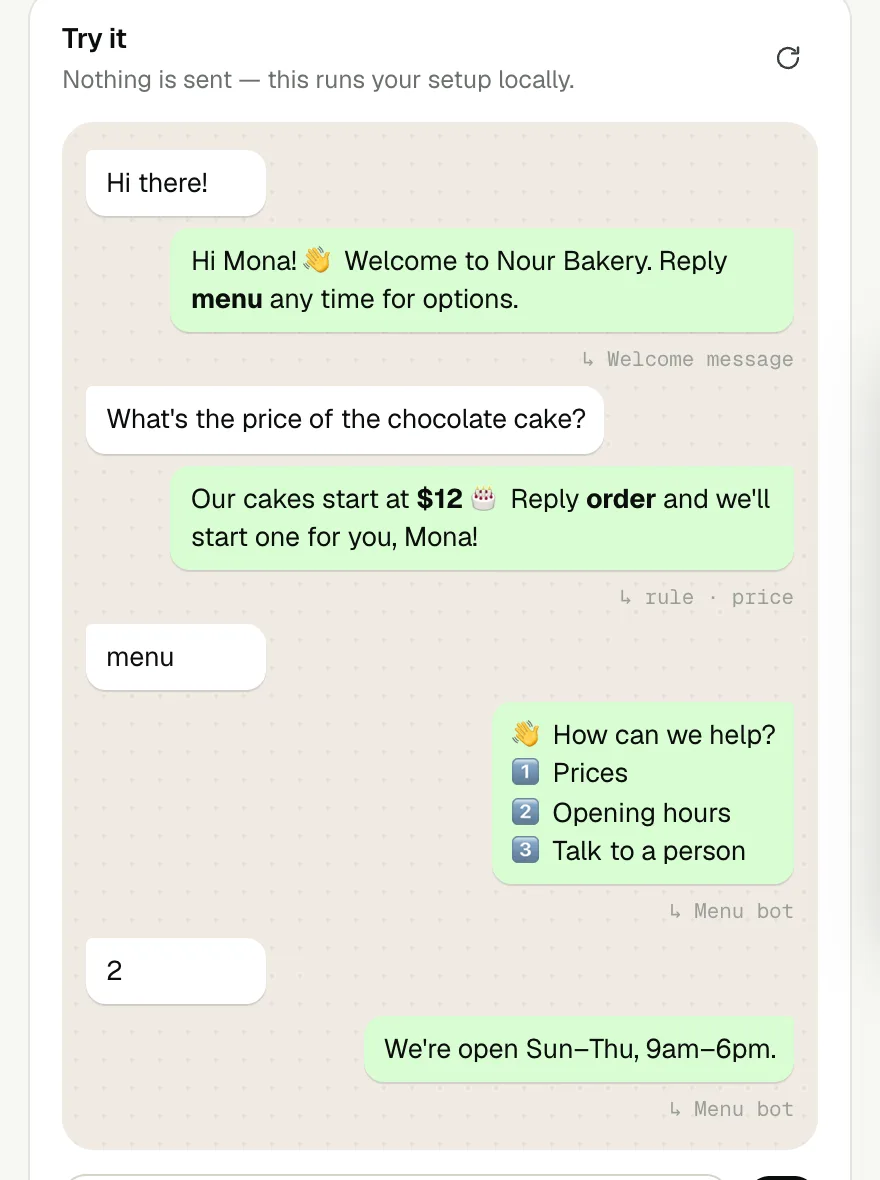
Use the built-in simulator to send sample customer messages through your rules. The simulator runs locally in the panel and sends nothing to WhatsApp.

  • Test a greeting, one keyword question and each menu option.
  • Fix unclear or overlapping answers before enabling Autopilot.
  • Keep WhatsApp Web open while Autopilot is active.
Real Wassender local simulator with a welcome, keyword reply, numbered menu and reply
The local simulator checks the customer journey before activation
05 · LET PEOPLE OPT OUT

“Stop” removes them from every campaign.

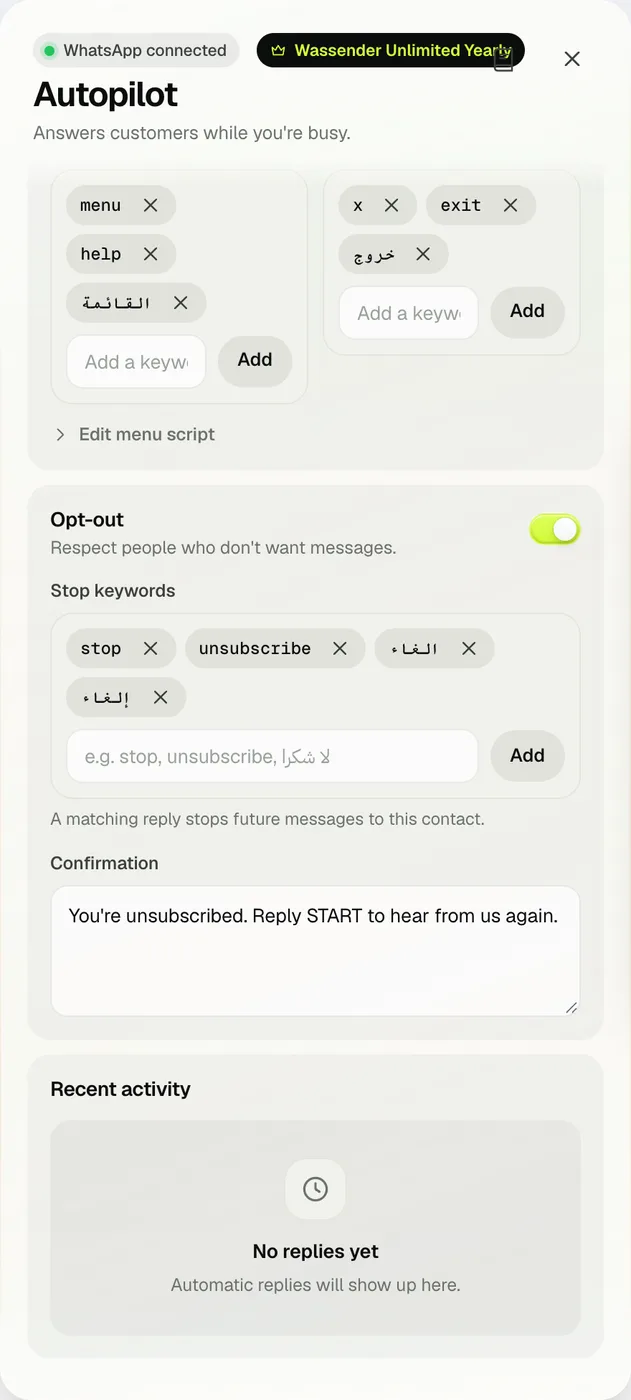
Turn on Opt-out and list the stop keywords your customers use (stop, unsubscribe, إلغاء). When someone sends one as a whole message, Autopilot adds them to your opt-out list and sends your confirmation.

  • Opted-out numbers are skipped by campaigns, sequences and Integrations.
  • Write a confirmation that tells them how to come back (Reply START).
Autopilot opt-out card with stop keywords and confirmation
Opt-out keywords in the real extension

Try a real customer question

  1. Any word: with keywords “price, cost”, “What is the price?” matches because it contains one option. All words requires every keyword. Exact message requires the whole message to match one listed option.
  2. A 5-minute cooldown means this rule will not reply again to the same person for 5 minutes. It does not delay the first reply.
  3. If two keyword rules match, the first enabled matching rule in the list is used. Keep overlapping keywords in one rule where possible.
  4. Welcome introduces your business to a new customer. Away answers when nothing else has replied; enable Only outside business hours if it should run only when you are closed.
  5. In Menu bot, “1=Prices|Our cakes start at $12” means: show Prices as option 1; reply with the price text when the customer sends 1. “menu:human” opens a menu section; arrange a teammate’s reply yourself.
  6. The opt-out keywords stop and unsubscribe let a customer leave your campaign list. Test one matching question, one unrelated question and every menu number in Try it before enabling Autopilot.

Copy a complete bakery reply setup

Use this bakery example in Autopilot. Set up and test one part at a time so you can tell which reply came from which setting.

  1. Keyword replies → Add. Keywords: price, cost, السعر, بكام. Match: Any word. Reply: “Our cakes start at $12. Reply menu to see more options.” Cooldown: 5 minutes. Save the rule.
  2. In Try it, enter “What is the price?” Expected reply: the cake price. Enter “Where is my order?” With other replies off, expected result: no reply. Add a separate order-help rule if you want to answer that question.
  3. Enable Welcome and enter “Hi [name], welcome to Nour Bakery. Reply menu for prices and hours.” This introduces your business when a new person writes; a matching keyword rule takes priority.
  4. Enable Away: “We are closed now. We will reply during business hours.” Set days Sunday–Thursday, from 09:00 to 18:00, enable Only outside business hours, and set the repeat interval to 60 minutes.

For Menu bot, set the trigger to menu, enable the menu and paste this complete example into its menu editor:

[root]
message=Welcome to Nour Bakery!
1 Prices
2 Opening hours
3 Talk to a person
1=Prices|Our cakes start at $12. Reply 0 for the menu.
2=Opening hours|Sunday to Thursday, 9am to 6pm. Reply 0 for the menu.
3=Talk to a person|menu:human
0=Menu|menu:root

[human]
message=A teammate will reply here. Reply 0 for the menu.
0=Back|menu:root

[root] is the first screen. message= starts the text displayed to the customer; the lines beneath it list the choices. In “1=Prices|…”, 1 is the customer’s reply, Prices is the label, and the text after | is the answer. menu:human opens the [human] section. 0 leads back to [root].

Customer: menu
Bot: Welcome to Nour Bakery! / 1 Prices / 2 Opening hours / 3 Talk to a person
Customer: 1
Bot: Our cakes start at $12. Reply 0 for the menu.
Customer: 0
Bot: Welcome to Nour Bakery! / 1 Prices / 2 Opening hours / 3 Talk to a person
Customer: 3
Bot: A teammate will reply here. Reply 0 for the menu.

Test menu → 1 → 0 → 3 in that order. A person must monitor the chat to deliver the promised human reply. The menu does not assign a support agent automatically. After checking the replies, switch Autopilot on and keep WhatsApp Web open. Features marked Unlimited need that plan.

Match the customer message to the exact rule

Input or settingExpected resultWhat to check
Any word: price, cost“What is the price?” → price replyOne listed word is enough.
All words: order, late“My order is late” → matches; “My order” → no matchBoth words must be present.
Exact message: price, cost“price” → matches; “What is the price?” → no matchThe whole message must be one option.
5-minute rule cooldownTwo price questions 1 minute apart → repeated rule is heldAnother enabled reply may handle the second message.
Menu open; customer sends 9, no option 9“Please reply with a number from the menu.”Use the Invalid response setting to change this text.
Menu open; customer sends xMenu session closesx is one default exit keyword.
Customer sends stop exactlyOpt-out confirmation; future campaigns exclude that numberThe opt-out keyword list uses whole-message matching.
Autopilot off or WhatsApp tab closedNo automatic live replyTurn it on and keep the tab open and connected.
AI assistant / Rewrite marked SoonThese controls are not active features yetUse saved templates, keyword replies and menu rules.
NEXT GUIDE

Follow campaign outcomes, too.

Schedule messages, track who replied and export the report for your team.

Read scheduling & reports
Chat with us