← All guidesSCHEDULING · REPLY TRACKING · REPORTS

Keep the next step easy to see.

Plan when a campaign starts, see who replied and export a clear record of what happened — all from the Wassender panel.

On this pageChoose a section
01 · SCHEDULE A CAMPAIGN

Pick the time that works for your customers.

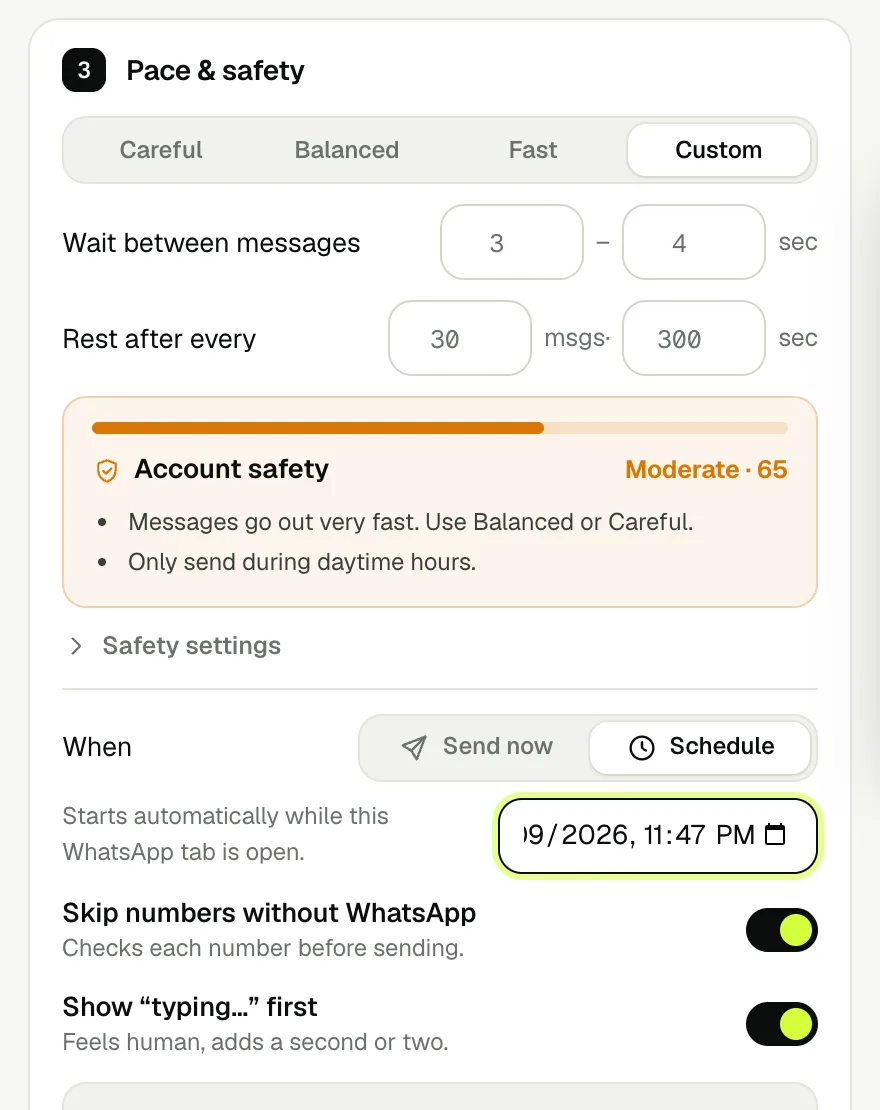
Build the campaign first, then choose Schedule under When. Select a future date and time; Wassender starts from your WhatsApp Web session, so leave that tab open.

  • Use scheduling for an Unlimited campaign.
  • Review the selected time and campaign summary before confirming.
  • Daily limits and sending hours still apply.
Real Wassender extension screen with campaign pace, Schedule selector and date-time control
Select Schedule and set the campaign start time
02 · TRACK REPLIES

Find the conversations that need a follow-up.

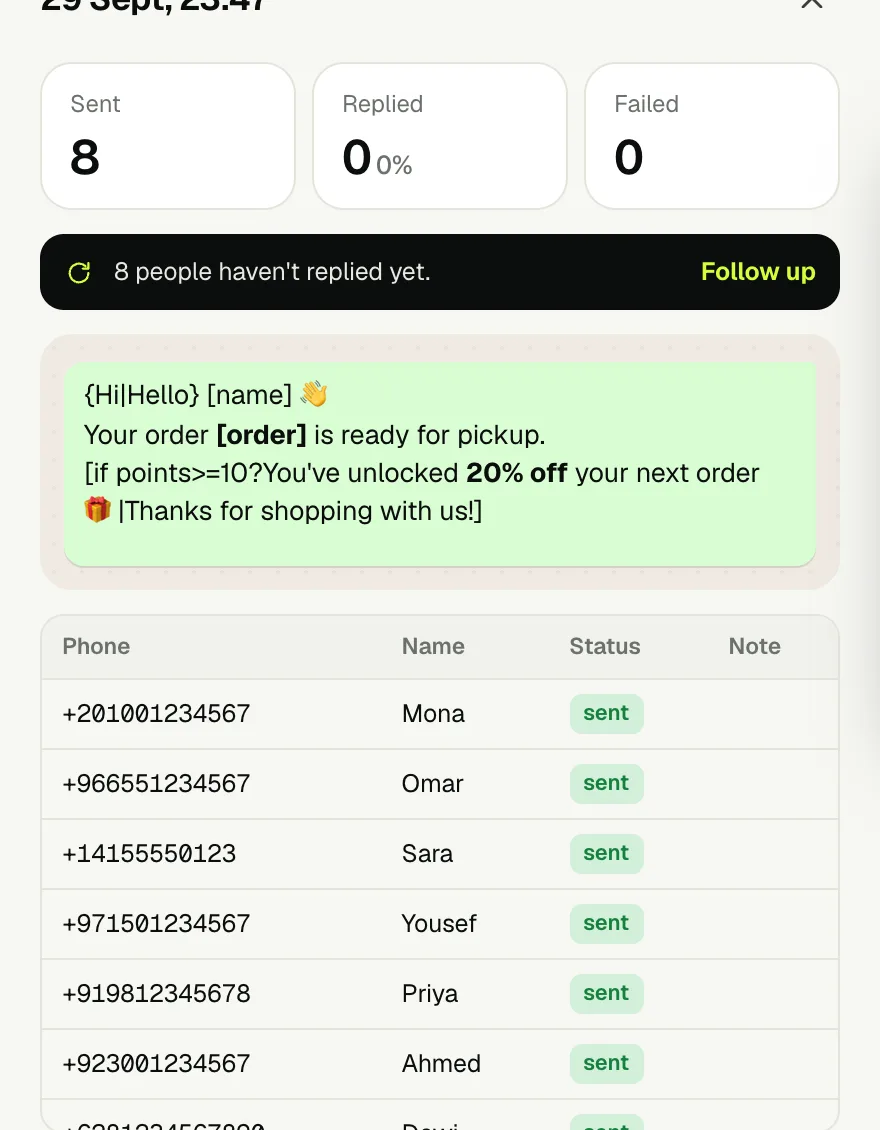
Wassender tracks replies to a campaign for up to 14 days. Open a campaign in Reports to see who replied and prepare a message for people who did not.

  • Open the campaign history entry to inspect recipient-level results.
  • Select Follow up to prepare a list of non-responders.
  • Review that list and message before sending the follow-up.
Real Wassender campaign detail view with reply totals, recipient statuses and the Follow up action
Open a campaign to review replies and follow up with non-responders
03 · READ YOUR REPORT

See campaign outcomes at a glance.

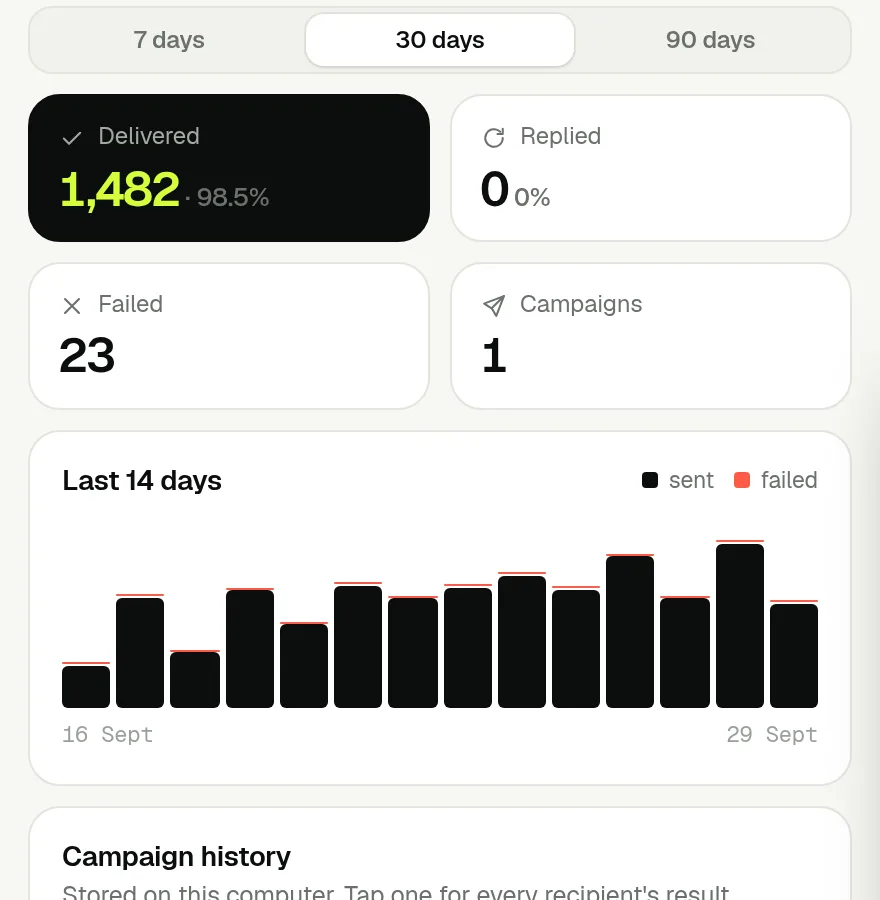
Reports combines delivery totals, reply counts, a recent activity chart and campaign history in one view.

  • Switch between 7, 30 and 90-day summaries.
  • Compare delivered, failed and replied counts.
  • Open any campaign row to inspect each recipient’s result.
Real Wassender Reports overview with date ranges, delivery and reply totals, activity chart and campaign history
A single view of delivery, replies and recent campaign history
04 · EXPORT YOUR RECORDS

Take campaign details into your workflow.

Export an individual campaign from its detail sheet, or export the full account history when you need a broader record. Exports are Excel files.

  • Use the campaign export for that run’s recipient, status and timing details.
  • Use the account export for a wider history across campaigns.
  • Keep exported records in the place your team normally manages them.
Real Wassender campaign report with per-recipient results and Excel export action
Export a campaign’s recipient-level results

What the numbers mean, and what to do next

  1. To send tomorrow at 10:00, choose Schedule, select tomorrow and 10:00, then confirm Schedule campaign. Keep the computer awake and WhatsApp Web open and connected. This is a local browser job.
  2. Sent means the send operation succeeded. The overview labels its successful-send total Delivered. This report does not verify that a customer read the message; Replied tracks an incoming reply instead.
  3. Replies are tracked for 14 days. For example, if 20 people were sent a message and 8 replied, review the remaining people before using Follow up. That action prepares another campaign for you to check.
  4. Export one campaign when you need its recipient results. Export account history when you need a wider record. Open the Excel file to sort failures, compare statuses or share results with your team.

Read a sample report and prepare the right follow-up

Example plan: send the appointments.xlsx reminder tomorrow at 10:00. Under When choose Schedule, select tomorrow at 10:00, review the confirmation and click Schedule campaign. A scheduled job appears in the campaign screen; use Send now to start it early or Cancel to remove it.

Example report: 20 successful sends, 2 failed attempts, 8 replies. The overview’s Delivered total is 20 because this screen counts successful send operations; it is not a read receipt. The success rate is 20 ÷ 22 = 90.9%. The reply rate is 8 ÷ 20 = 40%.

If those replies belong to this campaign, Follow up prepares the 12 successful recipients with no recorded reply. Failed recipients are excluded from that follow-up. It carries phone and name; add other spreadsheet columns again if your new message needs them.

Hi [name|friend], a quick follow-up about your appointment. Reply here if you need to confirm or change it.

Open the campaign → Export to Excel. A recipient export contains phone, name, status, note and time. Use the Note to understand a failure. The exported status is the send result; the reply badge in the detail view is shown separately.

Preview scheduling and report outcomes

Input or settingExpected resultWhat to check
Choose a time in the past“Pick a time in the future.”Choose a future date and time before confirming.
Scheduled for tomorrow; browser closed thenIt cannot send while the browser session is closedKeep the computer awake and WhatsApp Web connected.
20 successes; 2 failuresDelivered = 20; success rate = 90.9%The KPI counts successful sends, not read receipts.
8 replies from 20 successful recipientsReplied = 8; reply rate = 40%Follow up prepares the 12 without a recorded reply.
2 failed recipientsExcluded from the no-reply follow-upRead the Notes and resolve the cause first.
Follow-up needs [order] but its list only has phone/name[order] has no valueImport the extra data again or use a message without that field.
Export one campaignExcel columns: phone, name, status, note, timeUse the campaign export for row-level send results.

Preview an exported report before downloading it

phonenamestatusnotetime
12025550101Monasuccess—2026-10-15T10:00:00.000Z
12025550102OmarfailedExample failure: inspect your actual Note2026-10-15T10:00:30.000Z
12025550103—skippedExample skipped recipient2026-10-15T10:01:00.000Z

This is an illustrative export with the actual column names. success is a successful send; failed is an unsuccessful attempt; skipped means that row was not sent. Read note for context, and use time to see when the event was recorded. Your real Notes depend on the actual result.

What if my computer is asleep at the scheduled time?

Wassender sends from WhatsApp Web on your computer, so a scheduled campaign needs Chrome running and WhatsApp connected.

At the scheduled timeWhat happens
Chrome open, WhatsApp Web tab openThe campaign starts within about 20 seconds.
Chrome open, WhatsApp tab closedWassender reopens WhatsApp Web in the background and starts once it connects.
Computer asleep or Chrome closedNothing is sent. When you're back and WhatsApp connects, the campaign starts and a notice says how long Wassender was offline.
Restored on a new browserThe schedule waits for you: review it in Reports and choose Send now.

Tip: before an important scheduled send, set your computer not to sleep while plugged in, and leave Chrome open.

NEXT GUIDE

Serve more customers in their language.

See how Wassender adapts its interface and keyword matching for Arabic.

Read the Arabic guide
Chat with us