Variables and templates, one easy example at a time.
Start with one customer and one message. See exactly what each symbol does, then reuse the same message for your whole list.
On this pageChoose a section
01 · A variable is a blank filled from your spreadsheet
Think of [name] as “put this customer’s name here”. Each row is one customer. Each column is one detail you can put in their message.
Example spreadsheet
Phone
Name
Order
Points
201001234567
Mona
A-1042
12
966551234567
Omar
A-1043
4
You type this once:
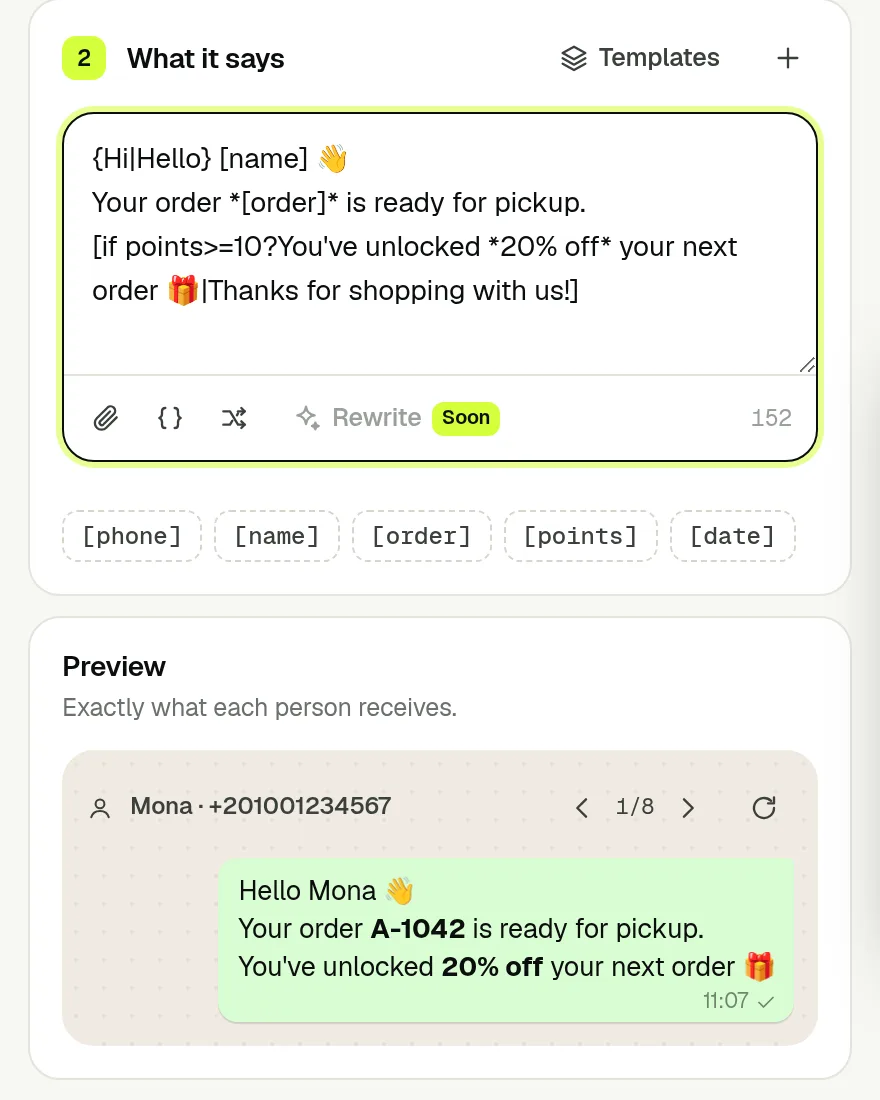
Hi [name], your order [order] is ready.
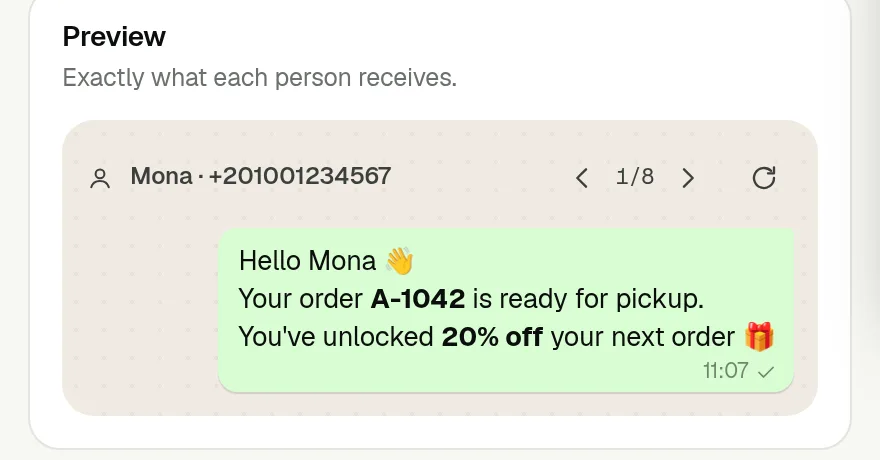
Mona receives “Hi Mona, your order A-1042 is ready.” Omar receives “Hi Omar, your order A-1043 is ready.” You do not need to write two messages.
Upload your spreadsheet and select the phone column.
Click a field chip below the message, such as [name], to insert it at the cursor.
Use the preview arrows to compare Mona’s message with Omar’s.
02 · What if a customer’s name is missing?
A fallback is the word to use when a cell is empty or a column is missing. Put it after | inside the same brackets.
Hi [name|friend], your order is ready.
With Name = Mona: “Hi Mona, your order is ready.” With an empty Name: “Hi friend, your order is ready.” The | means “use this instead if the value is missing”.
[order|] uses an empty fallback. Use it only where leaving the value out still makes sense. Without a fallback, an empty cell becomes blank and an unknown column can leave [column] visible.
03 · A condition chooses between two pieces of text
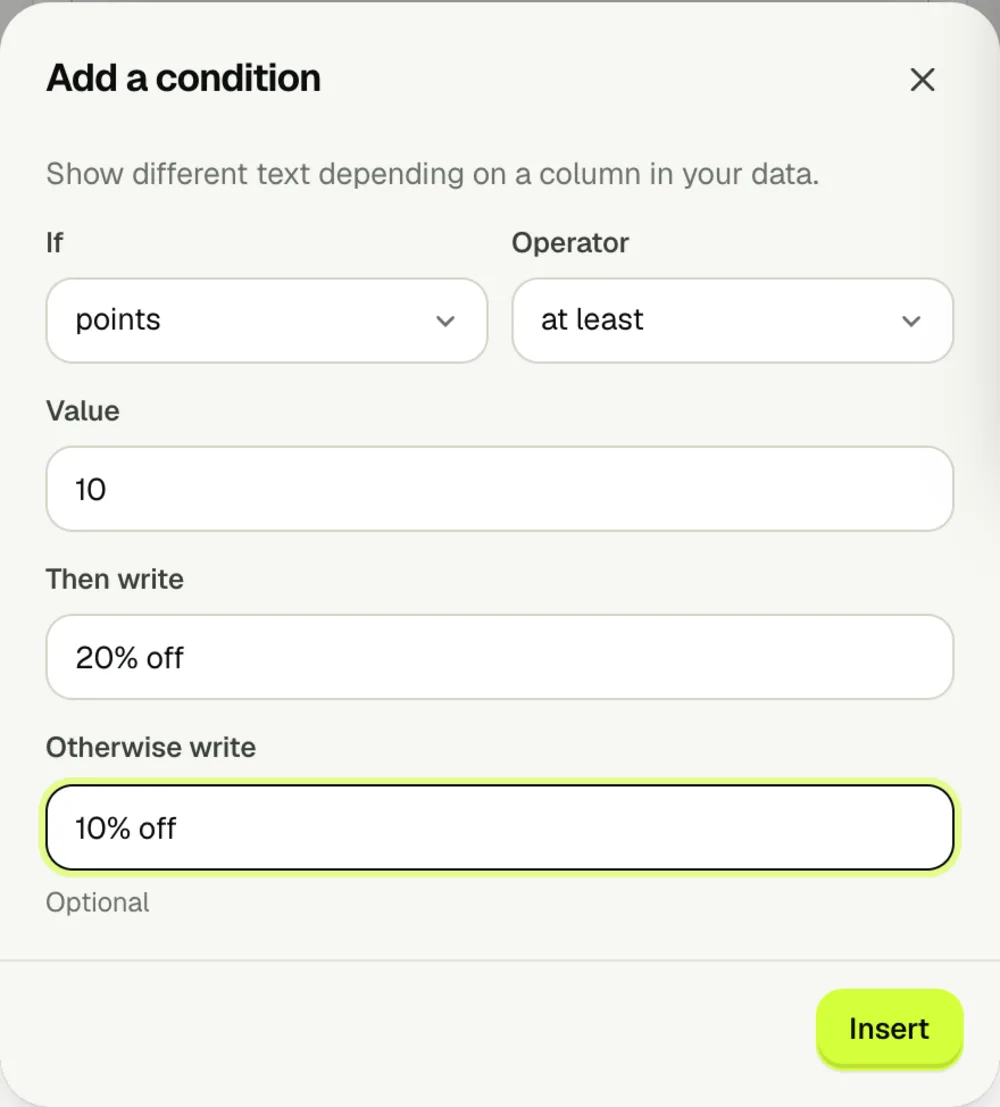
Example: give customers with 10 or more points 20% off. Give everyone else 10% off. Your Points column decides which sentence appears.
[if points>=10?20% off|10% off]
points: look at this customer’s Points cell.
>=10: check whether the number is at least 10.
?20% off: use this text when the answer is yes.
|10% off: use this text when the answer is no.
Mona has 12 points → 20% off. Omar has 4 points → 10% off. Use a plain number such as 12 in the spreadsheet, rather than “12 points”, for numeric comparisons.
You can build this with the condition control beside the message: choose the column, operator and value, fill Then write and Otherwise write, then click Insert. Otherwise write is optional; leaving it empty adds no text when the condition is false.
= or ==   equals                 [if city=Cairo?Local delivery|Ask about delivery]
!=        is not equal           [if status!=paid?Payment reminder|Thank you]
> / <     greater / less than    [if points>10?Bonus unlocked|Keep collecting]
>= / <=   at least / at most     [if points<=10?Starter offer|Loyalty offer]
~         contains text          [if product~cake?Keep refrigerated|Enjoy]
Keep each result to plain text or WhatsApp formatting. Avoid putting another condition or a [variable] inside the yes/no text; place variables before or after the condition instead.
04 · Wording variations pick one greeting
Braces with | between options tell Wassender to pick one option at random for each message. All options should keep the same meaning.
{Hi|Hello|Hey} [name|friend], your order is ready.
Possible result: “Hello Mona, your order is ready.” Another message might start with “Hi”. Options can repeat; this does not promise a different greeting for every customer.
05 · Names, dates and formatting: know what each field means
Column names ignore letter case. Spaces and hyphens become underscores: “First Name” can be used as [first_name]. Click the field chips to avoid guessing the spelling. Arabic headers also work: a column called الاسم can be used as [الاسم].
[phone]    recipient phone number
[date]     current date, unless your row supplies Date
[time]     current time, unless your row supplies Time
[time_12]  12-hour time, e.g. 2:05 PM
[time_24]  24-hour time, e.g. 14:05

*ready*    bold
_ready_    italic
~old text~ strikethrough
For appointments, use a specific column such as Appointment Date and insert [appointment_date]. [date] normally means the current date, so it is not automatically the customer’s appointment date. Nonempty spreadsheet values override built-in fields with the same name.
06 · A template is a saved message you can reuse
Save a message you send often, such as “Order ready” or “Appointment reminder”. The template keeps the wording and placeholders. Your next campaign’s spreadsheet supplies the customer details.
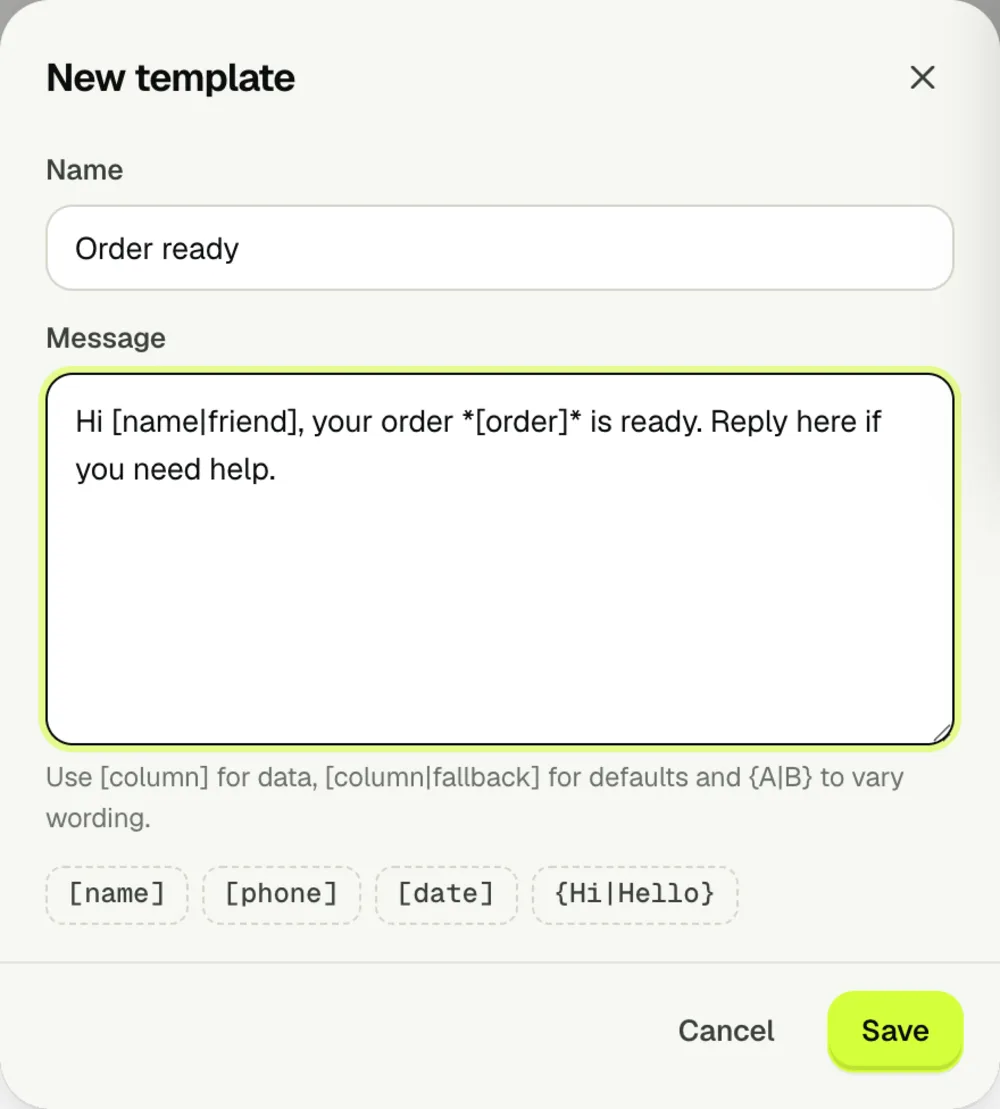
Write your message in a campaign. Click the + beside Templates (Save as template).
Sign in if prompted. Give it a clear name, such as “Order ready”, and click Save.
In your next campaign, import the new customers, click Templates and select the saved message. Selecting a template replaces the current message text.
Check that the new spreadsheet includes the fields your template uses, then preview several customers.
Saving a template saves its name and message text. It does not save the recipient list, campaign pace or attachment. Add those again for each campaign. Saved templates sync to your account so you can reuse them on another computer after signing in.
07 · Start with a ready-made template, then make it yours
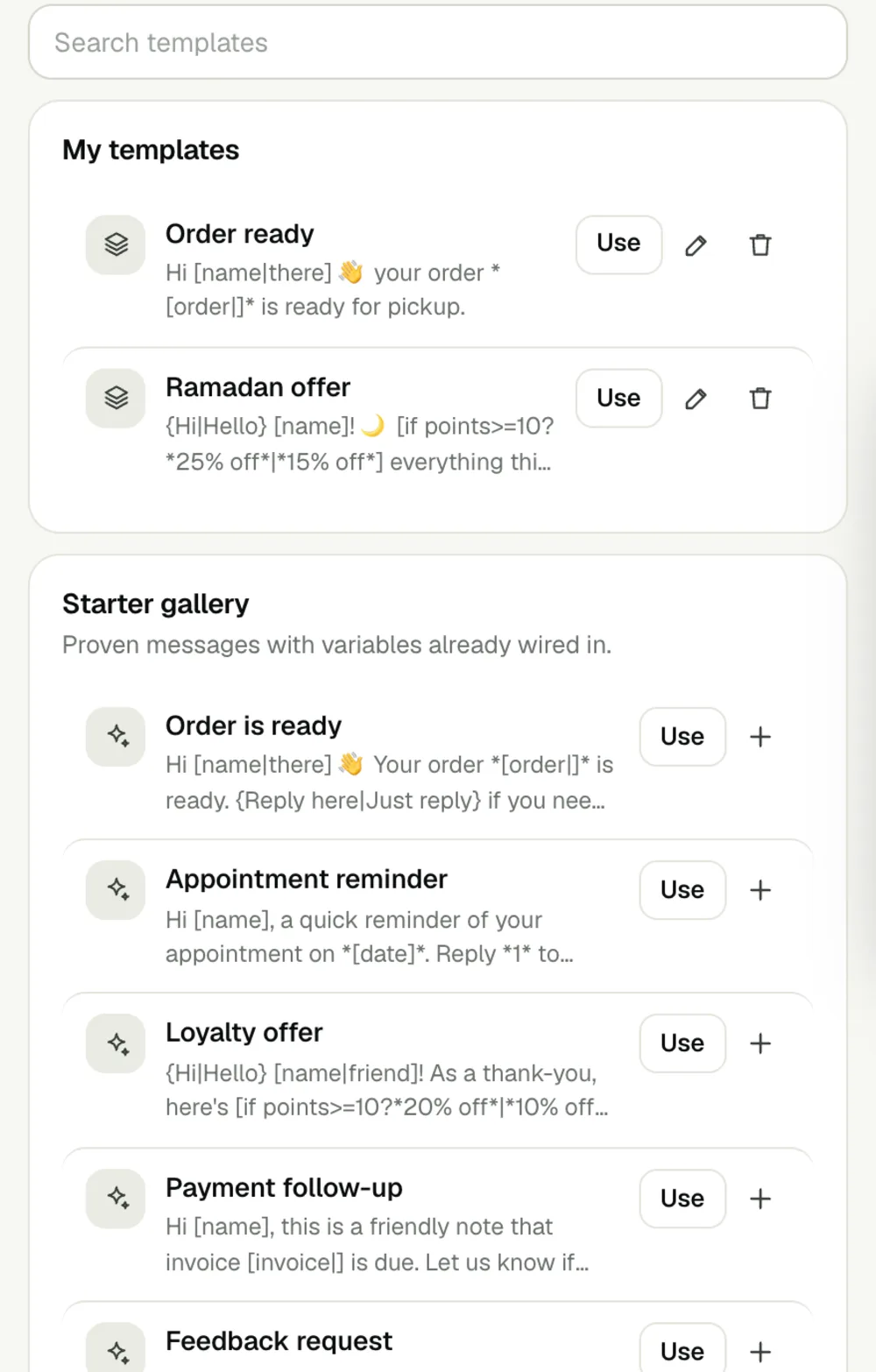
Open Templates in the extension’s side dock. Search My templates to find a saved message.
In Starter gallery, choose order ready, appointment reminder, loyalty offer, payment follow-up, feedback or back-in-stock messages. The gallery depends on your interface language.
Click Use to put a message into the campaign editor. Edit the wording before sending.
Click + on a starter to save your own copy. For a saved template, use Edit to change it or Delete to remove it. New template starts from a blank message.
If a starter uses [invoice], [product] or [code], add that column to your spreadsheet or replace it with text that applies to everyone. A starter is a starting point; always check the preview.
08 · Add a file and check the finished message
Click the paperclip and choose an image, video, audio file, PDF or another supported document. Files must be no larger than 16 MB.
Write the message alongside the file. The attachment belongs to this campaign; add it again when reusing a template.
Check a customer with complete details and one with a missing name. Confirm the name, order number, condition result and formatting.
Use the preview refresh control to try another wording variation. If a warning says No data for a field, add the column or a fallback before sending.
09 · Put it all together: a complete order-ready message
Use the Phone, Name, Order and Points columns from the example above. Paste this into the message editor:
{Hi|Hello} [name|friend],
Your order *[order]* is ready.
[if points>=10?Enjoy 20% off your next order!|Enjoy 10% off your next order!]
Reply here if you need help.
With “Hi” selected, Mona receives “Hi Mona, Your order A-1042 is ready. Enjoy 20% off your next order! Reply here if you need help.” Omar’s message uses A-1043 and 10% off. Save it as “Order ready + loyalty” once the previews look correct.
Compare message inputs and results
Input or setting
Expected result
What to check
Name = Mona
[name] → Mona
Uses this row’s Name cell.
Name is blank
[name|friend] → friend
The fallback replaces an empty value.
No Name column
[name] → [name]
Add Name or use [name|friend].
Points = 10
[if points>=10?20%|10%] → 20%
Exactly 10 satisfies “at least 10”.
Points = 9
[if points>=10?20%|10%] → 10%
Below 10 uses the second result.
Points is blank, missing or “12 points”
[if points>=10?20%|10%] → 10%
The numeric comparison fails. Use plain numbers.
City = cairo
[if city=Cairo?Local|Other] → Local
Text equality ignores letter case.
No Appointment Date column
[appointment_date] stays visible
Add the column; [date] is normally today.
Order-ready template; new file has only Phone and Name
[order] has no matching column
Add Order or remove that part of the message.
Pick a template while a draft is in the editor
The chosen template replaces the text
Review the new draft; attach the file separately.
Your message looks right. Review the sending controls next.
Choose the pace, review the audience and know how to pause a campaign.
 wassender