 wassender
A different image for each contact
Put image links or image file names in your Excel sheet and Wassender sends every contact their own pictures as real WhatsApp attachments — with your personalized message as the caption.
How it works
Your Excel sheet has one row per contact. Add one or more image columns, and Wassender sends each contact the images in their own row — as real WhatsApp photos, not links. Your personalized message goes as the caption of the first image; any other images follow straight after.
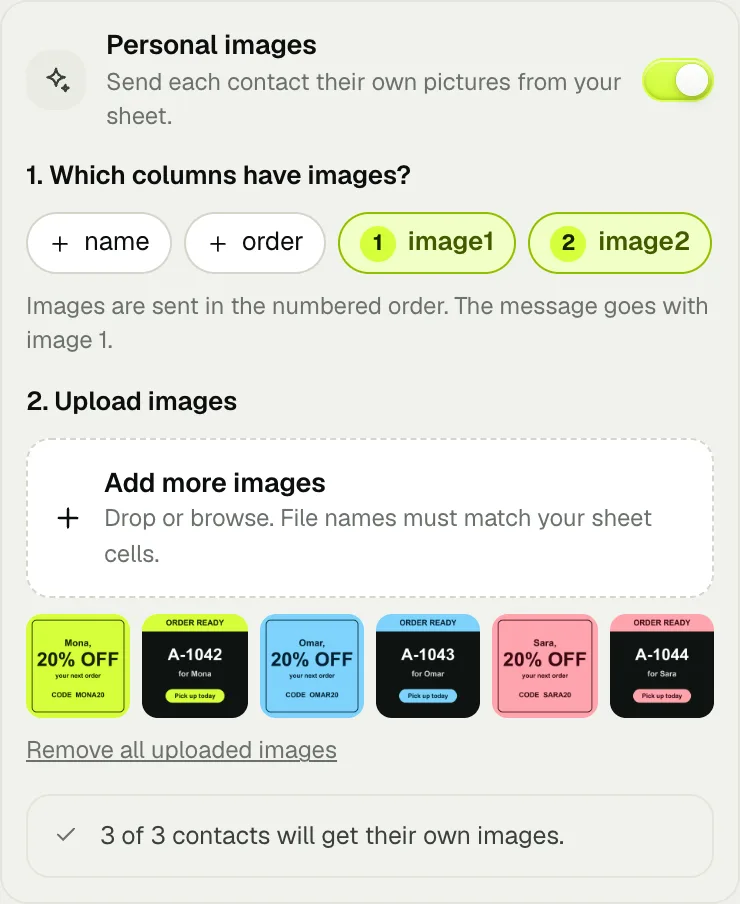
Two ways to add images
Image links
Each cell holds a public https:// link that opens the image itself.
- Best when images are already online (your store, CDN, product catalog).
- Nothing to upload — just allow image links once.
- Images download on your computer; they never pass through our servers.
Uploaded files
Each cell holds a file name, like coupon-mona.jpg. You drop the images into Wassender.
- Best for images on your computer: designs, receipts, certificates.
- Works with no internet links at all — even Google Drive files you downloaded.
- Fastest sending: images are ready before the campaign starts.
You can mix both in the same sheet — even in the same column.
Step by step
Prepare your sheet
Keep your usual phone and name columns, and add a column for each image: image1, image2… as many as you need. Leave a cell empty when a contact has no image.
Example sheet
phone name order image1 image2 201001234567 Mona A-1042 coupon-mona.jpg order-mona.jpg 966551234567 Omar A-1043 https://…/coupon-omar.jpg order-omar.jpg 14155550123 Sara A-1044 coupon-sara.jpg Import it and turn on Personal images
Open a campaign, choose Spreadsheet in step 1 and drop your file. Write your message in step 2, then switch on Personal images. Wassender ticks the columns that look like images for you.

Choose the image columns
Tap a column to add or remove it. The number on each chip is the order the images are sent in — the message travels with image 1.
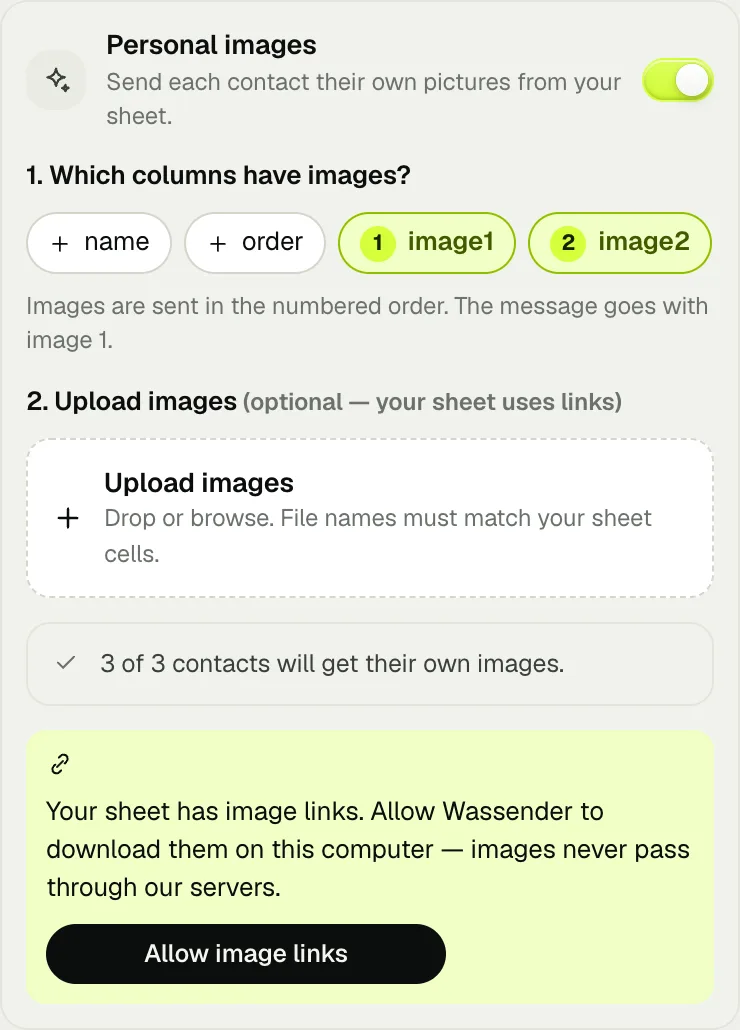
Links: allow image links once
If your cells are links, press Allow image links and confirm in the small Wassender window. This is asked only once.
Files: upload your images
If your cells are file names, drop the images onto Upload images (you can select many at once). The Still needed list shows exactly which names are missing.
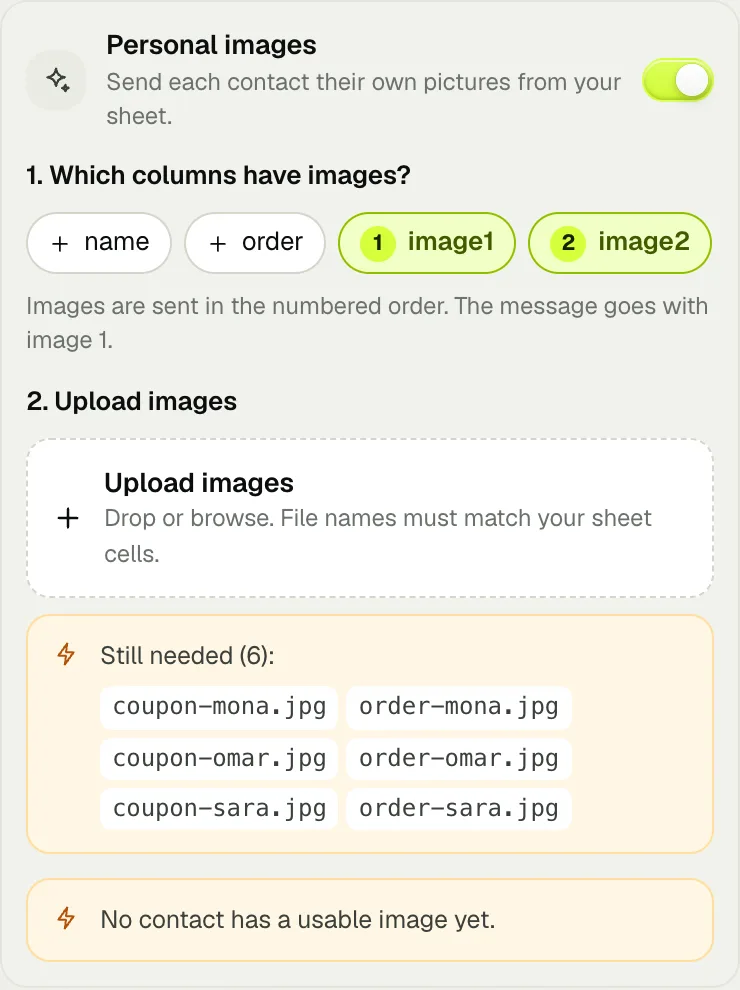
Keep going until nothing is missing
Add the rest — the list shrinks as names match. Upper/lower case doesn't matter, and mona works for mona.jpg.
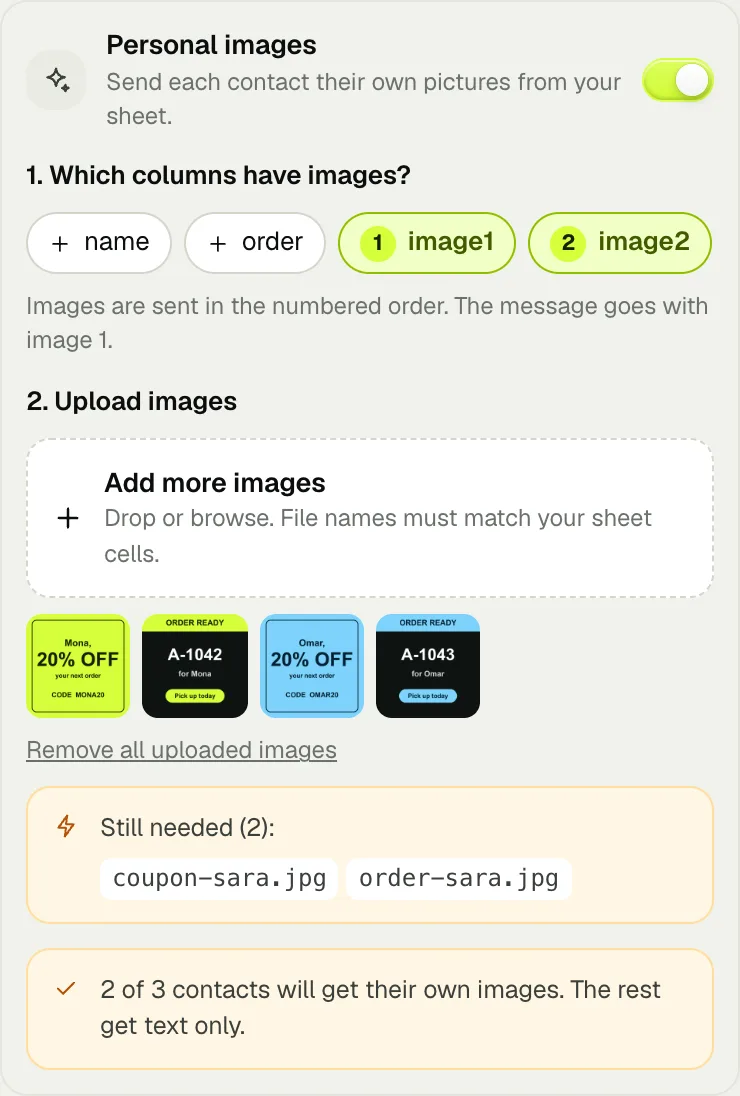
Everything matched
Thumbnails show what you uploaded, and the summary tells you how many contacts will get their own images.
Check the preview
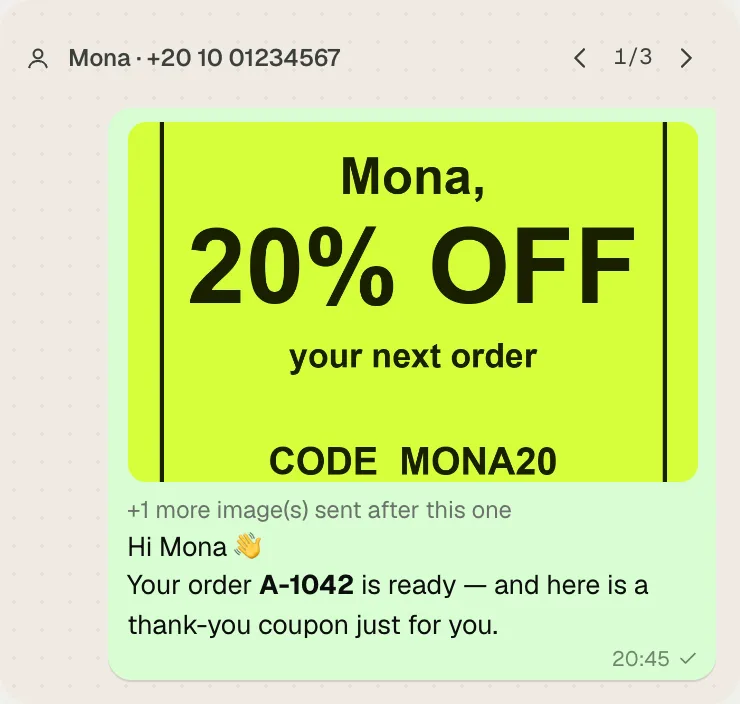
The preview shows each contact's real image and message. Use the arrows to flip through contacts.
Review and send
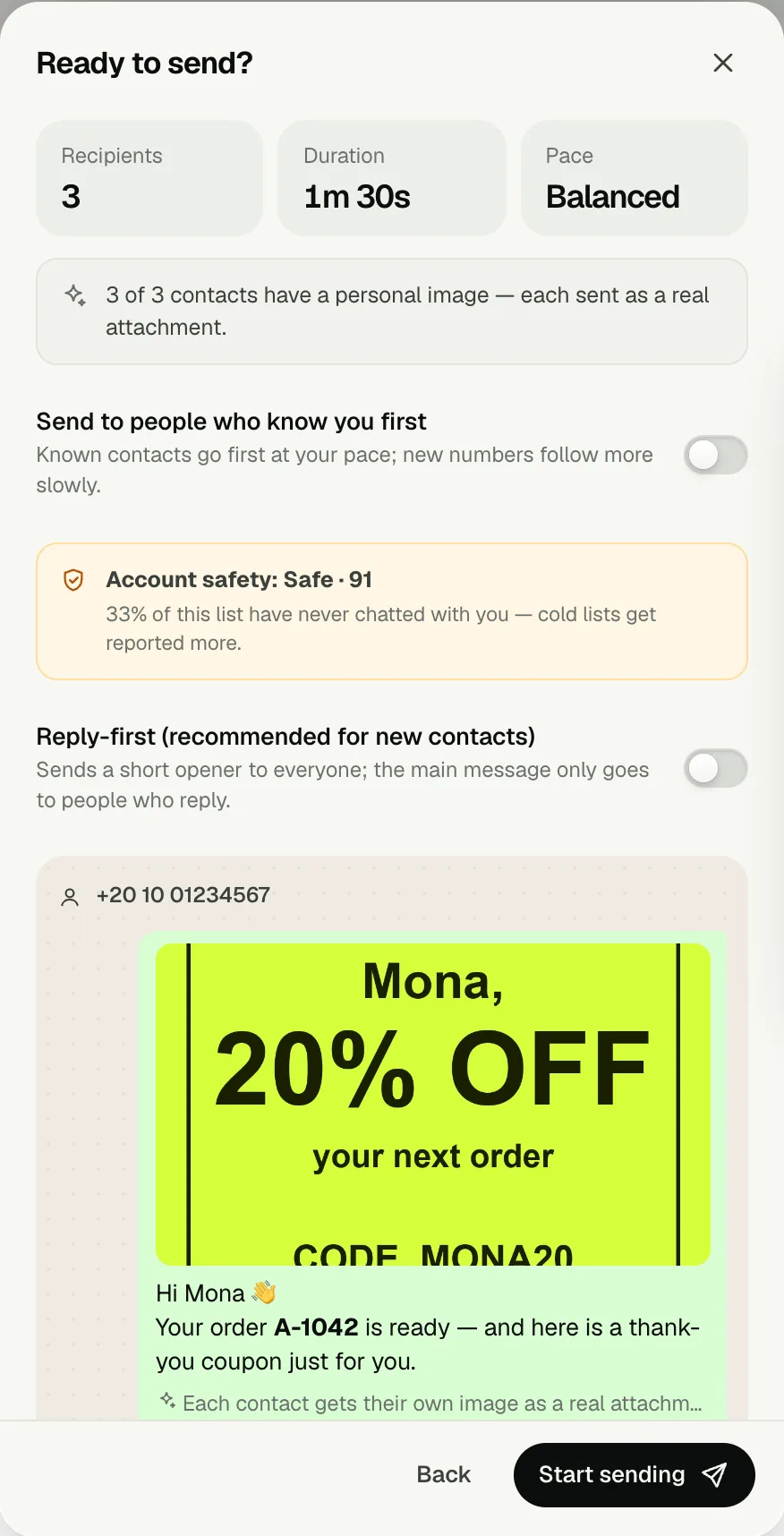
The summary confirms how many contacts have a personal image. Press Start sending — each one goes out at your safe pace.
Use cases and ready-to-use messages
Copy a message, add the image columns shown, and you're ready.
Order ready with a product photo
Shops, bakeries, tailors
Hi [name] 👋
Your order *[order]* is ready for pickup. Here's a photo so you know it's yours. See you soon!
phone, name, order, image1 (product photo)
Personal discount coupons
Retail, restaurants, salons
Hi [name] 🎁
This coupon is just for you: use code *[code]* on your next visit. Valid until the end of the month.
phone, name, code, image1 (coupon design)
Event tickets and QR passes
Events, workshops, gyms
Hi [name], here's your ticket 🎟️
Seat: *[seat]*. Show this QR at the entrance. See you there!
phone, name, seat, image1 (ticket / QR)
Receipts and invoices
Services, wholesalers, clinics
Hi [name], thanks for your payment of *[amount]*. Your receipt is attached. Reply here if anything looks wrong.
phone, name, amount, image1 (receipt)
Property or car listings (several photos)
Real estate, car dealers
Hi [name] 🏡
A new listing in *[area]* matches what you asked for. Photos below — want to book a viewing?
phone, name, area, image1, image2, image3
Certificates and results
Schools, training centers
Congratulations [name] 🎓
You completed *[course]*. Your certificate is attached — we're proud of you!
phone, name, course, image1 (certificate)
Tips and troubleshooting
A link didn't work
The link must open the image itself (ending in .jpg, .png or .webp). Google Drive, Dropbox or WhatsApp share pages are web pages, not images — download the images and use Uploaded files instead.
A name says Still needed
The cell text must match the file name. Check spelling and extension; case doesn't matter.
Some contacts have no image
They get your shared attachment if you added one, otherwise just the message. The summary tells you how many.
How big can images be?
Up to 16 MB each, and up to 200 MB of uploads per campaign. WhatsApp compresses photos anyway, so normal phone photos are perfect.
Is it private?
Yes. Uploaded images stay in your browser, and links are downloaded on your computer. Nothing passes through Wassender servers.
Which plan?
Personal images are part of the paid plans. You can try everything else with 1 hour of Unlimited free.
Download the example sheets
Image links (.xlsx)File names (.xlsx)The 6 example images (.zip)